Your Generac generator just went dark in the Mobile Link app after your router upgrade. That “offline” status during storm season isn’t just annoying—it means you won’t get critical alerts when the power fails. Don’t risk being blind to your backup power system. Changing Wi-Fi on your Generac generator takes just 10 minutes when you use the right method for your specific model.
Most homeowners panic when they see connectivity issues, but the solution is simpler than you think. Whether you have a sleek built-in module on a 2022 Guardian Series or an older external adapter, this guide delivers precise, model-specific instructions. You’ll avoid common pitfalls like password errors or 5 GHz incompatibility that leave generators stranded offline.
By the end, you’ll confidently reconnect your generator using panel controls, the Mobile Link app, or a module reset—plus learn how to verify the connection and prevent future outages. Let’s get your lifeline back online before the next storm hits.
Identify Your Wi-Fi Module Type Before Starting
Built-in Wi-Fi (2018+ Models)
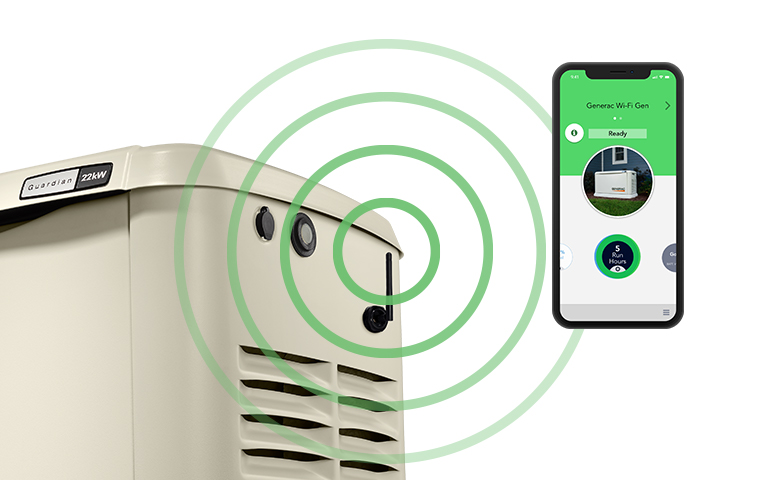
Scan your generator’s display panel for a Wi-Fi symbol or “Wi-Fi” text label. These newer Evolution 2.0 controllers integrate the module directly into the housing—no external boxes or cables visible. If your model was manufactured after 2018 (check the nameplate), you likely have this streamlined system. Critical note: Built-in modules support multiple network profiles and faster reconnection but require controller-specific reset sequences.
External Wi-Fi Module (Pre-2018 Models)
Spot these dead giveaways immediately:
– USB adapter: A small black or white dongle plugged into the control panel’s USB port
– Ethernet cable: Visible blue or black cable running from generator to a separate Wi-Fi box
– Serial connection: Phone-style cable linking a standalone module to Nexus/Evolution controllers
Pro tip: External modules need physical resets using paperclips, while built-in versions use controller button combinations. Mistaking your type causes wasted time—double-check before proceeding.
Gather Network Essentials to Avoid Setup Failures
Network Details Checklist
Don’t start until you have these ready:
– Exact SSID: Your new Wi-Fi name (case-sensitive—spaces and symbols matter)
– Password: Must be 63 characters max (WPA2 recommended; avoid special characters like & or %)
– Frequency confirmation: Generac only supports 2.4 GHz—5 GHz networks will fail immediately
– Security type: WPA2 works best; WEP/WPA are fallbacks but less secure
Generator-Specific Information
- Model number: Found on the metal nameplate (e.g., “7043” for Guardian Series)
- Controller type: Evolution, Nexus, or Evolution 2.0 (determines button sequences)
- Mobile Link login: Your existing account email/password (required for app method)
Warning: Attempting setup without these guarantees “Authentication Failed” errors. Print this checklist and verify everything before touching your generator.
Method 1: Direct Panel Configuration for Evolution/Nexus Controllers
Access Wi-Fi Menu in 30 Seconds
- Open your generator’s enclosure and ensure it’s in AUTO mode
- Press ENTER 5-7 times until “Wi-Fi” appears on the display
- Use arrow keys to highlight “Wi-Fi Setup” and press ENTER
Visual cue: The display shows “Network: [Your_Old_SSID]”—this confirms you’re in the right menu.
Connect to New Network Step-by-Step
- Select “Change Network” → wait for “Searching for Networks…” (takes 15 seconds)
- Scroll through detected networks using UP/DOWN arrows—ignore 5 GHz options
- Press ENTER on your correct 2.4 GHz SSID
- Input password character-by-character:
– Arrow to letters/numbers → press ENTER after each selection
– Critical: Watch for CAPS LOCK—passwords are case-sensitive! - Double-press ENTER to confirm → wait for “Connected” and IP address (e.g., 192.168.1.45)
Time estimate: 5 minutes max. If it times out, cycle the generator to OFF then back to AUTO and restart the process.
Method 2: Mobile Link App Configuration Without Panel Access
Local Bluetooth Connection (Within 30 Feet)
- Open Mobile Link app → log in → select your offline generator
- Enable Bluetooth when prompted (stay near the generator)
- Tap the gear icon → “Wi-Fi Settings” → “Local Connection”
- Wait for “Scanning…” → select your new network from the list
- Enter password in the app field → tap “Update Network Settings”
- Do not close the app while it shows “Updating…” (2-3 minute reboot)
Pro tip: Hold your phone against the generator’s control panel during scanning for stronger Bluetooth signal. If it fails, restart both devices and retry.
Remote Configuration (For Partially Connected Generators)
Use this only if Mobile Link still shows “Online” but with old network data:
1. Navigate to your generator in the app
2. Go to Settings → “Change Wi-Fi Network”
3. Enter new SSID and password when prompted
4. Confirm update → generator disconnects briefly (normal behavior)
Urgent warning: Remote changes require temporary disconnection. Never attempt this during active power outages—you’ll lose monitoring capability for 5 minutes.
Method 3: Full Wi-Fi Module Reset for Stubborn Connections

When to Use This Nuclear Option
Reset only if:
– Generator shows “Network Not Found” despite strong signal
– You’ve switched from a corporate network to home Wi-Fi
– Router replacement changed network fundamentals
– All other methods fail after 3 attempts
External Module Reset Procedure
- Locate the recessed reset button on the Wi-Fi adapter (often under a flap)
- Insert a paperclip and hold for 10-15 seconds
- Watch the LED: Rapid blink → solid light → turns OFF
- Release immediately when LED goes dark
- Reconfigure using Method 1 or 2
Visual confirmation: After reset, the module enters setup mode—LED blinks slowly (1 blink per second).
Built-in Module Reset Shortcut
- Press UP + DOWN arrow keys simultaneously for 5 seconds
- Enter default password: 2784
- Navigate to “Communication Settings” → “Reset Wi-Fi”
- Confirm reset → generator restarts communication system
- Set up new network immediately (module stays in setup mode for 10 minutes)
Common mistake: Holding reset too long on external modules. Release the second the LED turns off—over-resetting bricks the module.
Verify Connection to Prevent False Alarms
Instant Success Checks
- Generator display: Solid Wi-Fi symbol with 2-3 signal bars (not blinking)
- Mobile Link app: “Last Updated” timestamp changes within 5 minutes
- Test command: Remotely start a 10-minute exercise cycle via app
Troubleshooting tip: If the app shows “Offline” for >24 hours, check your router’s device list. Generac often gets blocked by “unknown device” security features—whitelist its MAC address.
Monthly Maintenance to Avoid Future Wi-Fi Failures
Critical Reliability Steps
- Signal test: Open Mobile Link weekly—ensure “2-3 bars” minimum on generator display
- Router placement: Keep within 100 feet with line-of-sight (concrete walls kill signals)
- Password updates: Change Wi-Fi password via app—not panel—to prevent lockouts
Pro tip: Install an outdoor-rated Wi-Fi extender (like TP-Link CPE610) if your generator sits >50 feet from the house. This costs less than a service call and prevents 90% of dropouts.
Emergency Fixes When Wi-Fi Won’t Connect
Immediate Workarounds
- Cellular backup: Activate Mobile Link’s cellular plan ($10/month) for uninterrupted alerts
- Direct monitoring: Check display for fault codes (e.g., “F102” = communication error)
- Manual test: Flip switch to MANUAL → start generator → verify operation
Last-resort solution: If all fails, restore previous network settings via panel menu. Many models save old profiles—select them from the “Saved Networks” list during setup.
Model-Specific Shortcuts You Need
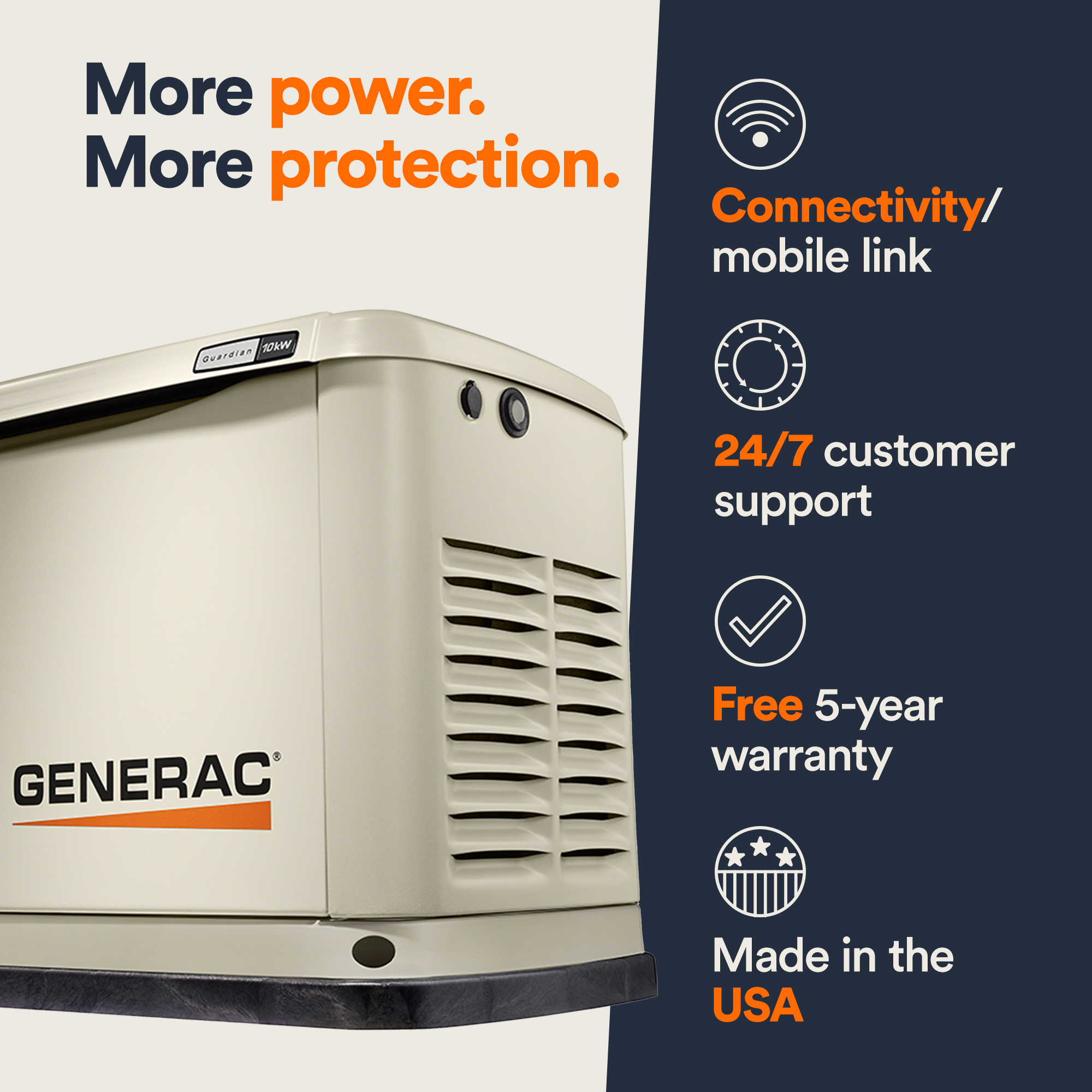
Guardian Series (22-24kW, 2019+)
- Built-in Wi-Fi standard—no external hardware
- Supports dual networks: Set primary (home) and backup (mobile hotspot)
- Time-saver: Hold ENTER for 3 seconds to jump straight to Wi-Fi menu
PowerPact Series
- Requires external USB module (sold separately)
- Nexus controller needs Ethernet cable for stable connection
- Critical: Disable “Auto Channel Selection” on your router—fixed channel 11 works best
Commercial Units
- Do not attempt DIY: Requires certified technician for enterprise network integration
- Enterprise models support VLAN tagging and static IPs—provide these to your installer
Key takeaway: Changing Wi-Fi on your Generac generator succeeds when you match the method to your specific module type and network environment. Always verify connectivity with a remote test command immediately after setup—never assume it worked.
Next step: Bookmark Generac’s Mobile Link support page and enable app auto-updates. When router changes loom, reset your generator’s Wi-Fi proactively during daylight hours—never wait for outage season. Your peace of mind during the next storm depends on this 10-minute maintenance task.