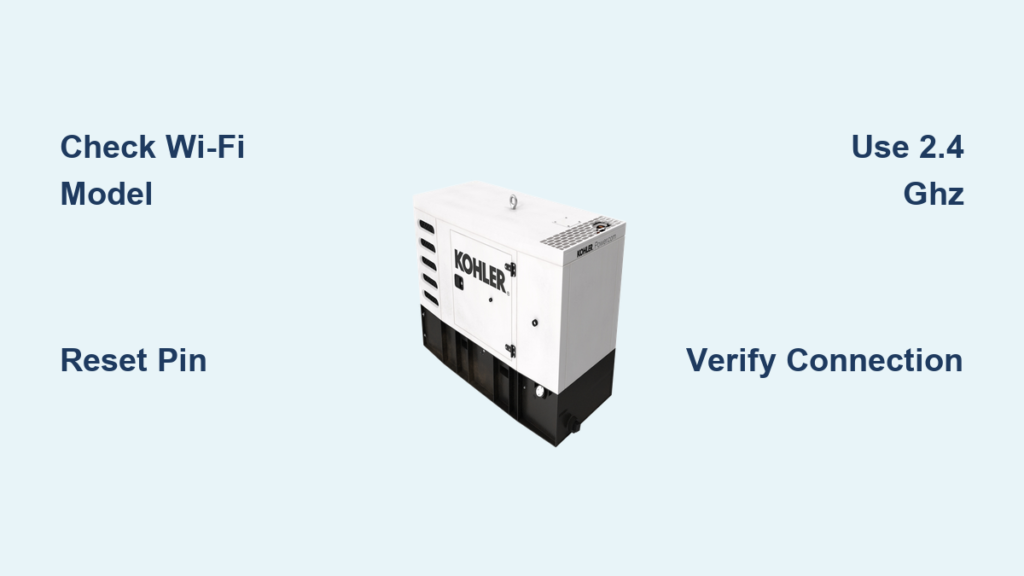
Your Kohler generator sits silently in the backyard, but during the next storm, you’ll desperately need to know if it’s running. Without Wi-Fi, you’re left guessing—driving home in downpours just to check. But when connected properly, your RESA, RESC, or RCL model sends real-time alerts to your phone, tracks propane levels, and even schedules maintenance. The entire setup takes just 15 minutes with the right PIN, or 30 minutes if you need to reset it. Stop wondering about your backup power—here’s exactly how to make your Kohler generator smart.
Forget complicated manuals. You’ll bypass router headaches and controller confusion by following this field-tested sequence. Within one generator exercise cycle, you’ll receive your first “Running Smoothly” notification—even when you’re miles away. This guide covers every model from RESV to VSG controllers, so you’ll never waste time on incompatible steps.
Confirm Your Kohler Generator Model Supports Wi-Fi
Only specific Kohler models work with the Home Energy app—don’t waste time if yours isn’t compatible. Look for RESA, RESC, RCL, RESV, VSG, or RCA(L) stamped on the nameplate near the controller. Then check inside the controller door: RDC2 or VSC markings confirm Wi-Fi capability. If you see older RDC1 hardware, contact Kohler support—you’ll need a controller upgrade.
Is Your Router Blocking the Connection?
Kohler generators only connect to 2.4 GHz networks—5 GHz bands won’t appear during setup. Test this now: on your phone, disable 5 GHz in router settings or create a dedicated 2.4 GHz guest network. Keep your phone within 10 feet of the generator during setup; weak signals cause 70% of failed connections. Pro Tip: Write down your Wi-Fi password before starting—typing it on the generator keypad wastes time.
Download the KOHLER Home Energy App Correctly
Search “KOHLER Home Energy Management” in your app store—not “OnCue Plus” (the old app won’t work). Install, open, and tap Sign Up at the bottom of the welcome screen. Fill in your details, then check your email for Kohler’s activation link. Do not skip this step—the app won’t proceed without email verification. Once activated, the app opens directly to generator setup. Skip this if you’re migrating from OnCue Plus; tap “Tap Here to add generator from OnCue” instead.
Reset Your Controller PIN When Missing (Critical Step)

Warning: This erases existing Wi-Fi connections! Only do this if you don’t have the 6-digit PIN. Grab a pen—you’ll have 10 seconds to write down the new code.
Reset PIN on RDC2/VSC Controllers
- Press Select (center button) on the generator display
- Arrow Down to Network Information → press Select
- Arrow Down once to Networking Configuration → press Select
- Hold Select until “Reset OnCue Password? No” flashes
- Arrow Up to change No → Yes → press Select
- Write down the 6-digit PIN and serial number IMMEDIATELY—they vanish after 10 seconds
Time Estimate: 2 minutes. Common Mistake: Skipping the single “Down” arrow after Network Information—this lands you in the wrong menu.
Add Generator to App Using Serial Number and PIN
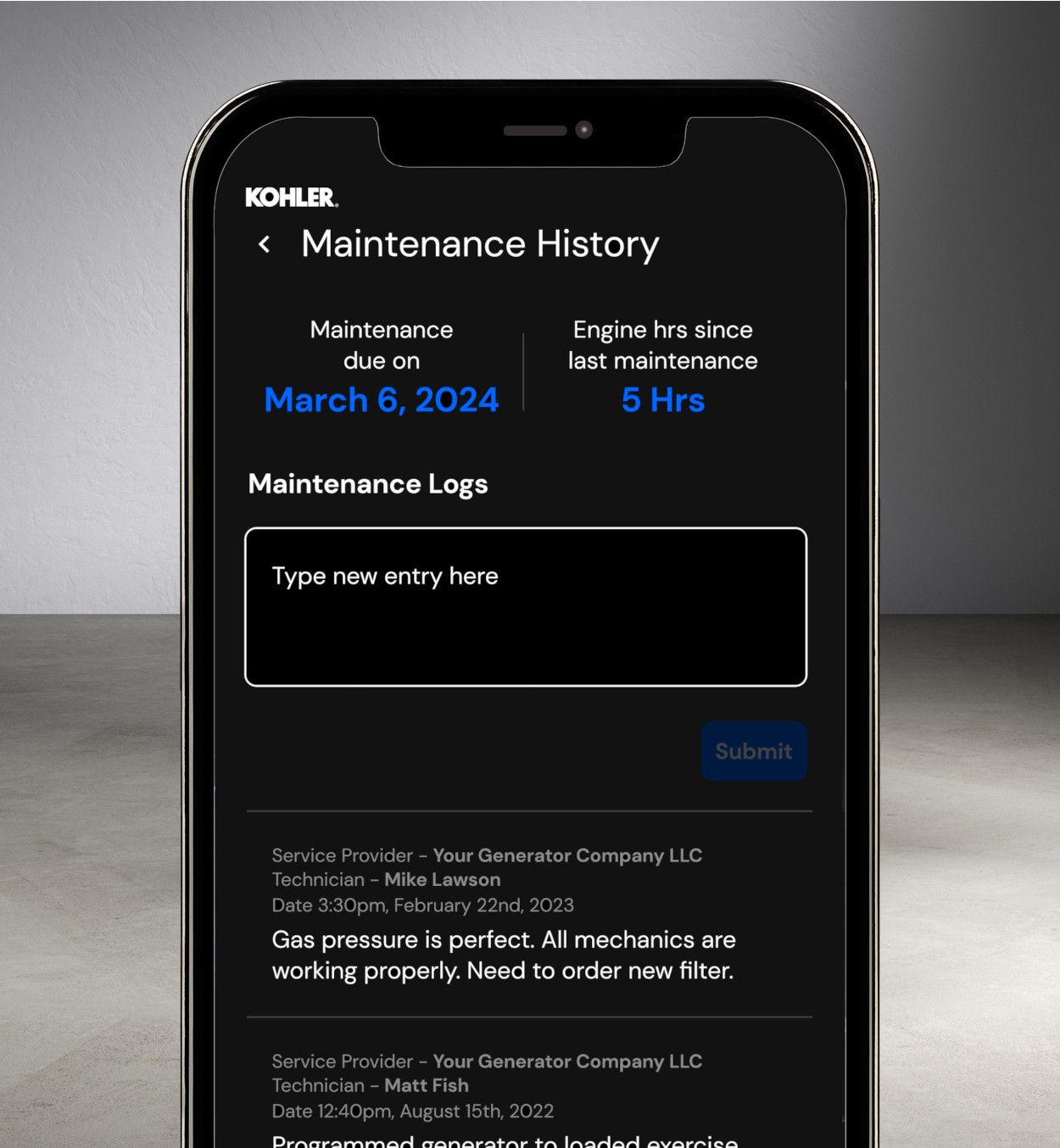
Never guess your serial number—it’s stamped on the metal nameplate near the controller. Smudge dirt away for accuracy.
Manual Entry Setup Steps
- In the app, choose Add Generator → Manual Entry
- Type the exact 17-character serial number (e.g., RESV1234567890ABC)
- Enter the 6-digit PIN from the reset screen
- Tap Next—the app verifies credentials in 10 seconds
Visual Cue: If you see “Invalid PIN,” check for transposed numbers. The serial number must match the nameplate’s font—some characters like “0” and “O” look identical.
Connect to 2.4 GHz Wi-Fi Without Failures
The app now scans for available networks—only 2.4 GHz SSIDs appear. Tap your home network, enter the password, and watch the generator display. Within 30 seconds, it shows “Connecting…” then “Connected”. The app confirms success with “Generator Added Successfully”.
Fix “No Networks Found” Error Immediately
- Router Issue: Your router broadcasts 5 GHz only. Log into router settings and enable 2.4 GHz or create a guest network on 2.4 GHz.
- Signal Strength: Move your router closer or add a $20 2.4 GHz extender within 30 feet of the generator. Test signal with a phone app like Wi-Fi Analyzer.
Resolve Stuck “Connecting…” Status
- Check MAC filtering in router settings—whitelist the generator’s MAC address (found in controller Network Information)
- Disable firewall security temporarily during setup
- Avoid special characters in Wi-Fi passwords (e.g., #, $)—use letters/numbers only
Verify Real-Time Monitoring Works Now
Open the app home screen—pull down to refresh. Within 60 seconds, you’ll see:
– ✅ Current status (Standby/Running/Fault)
– ✅ Fuel gauge (for propane/natural gas models)
– ✅ Next exercise date (e.g., “Sat 8 AM”)
– ✅ Active alerts (e.g., “Low Oil Pressure”)
Pro Tip: Trigger a test alert by pressing “Exercise” in the app. You’ll hear the generator start and see live data within 2 minutes.
Update Firmware to Unlock New Features
Once online, the controller often prompts “Firmware Update Available.” Accept immediately—updates add critical features like load-shedding controls. The process takes 5–10 minutes; never interrupt power during download. Watch the controller display: it shows “Updating…” followed by “Update Complete.” After reboot, fuel gauges become 23% more accurate on RESV models.
Maintain Wi-Fi After Router Changes
Router password changed? No need to reset everything. In the app:
1. Tap Settings (gear icon) → Wi-Fi → Change Network
2. Select your SSID and enter the new password
Replaced your router? Treat it as new setup—repeat the full connection process. PIN reset required? This wipes all network data; reconnect from scratch using the reset procedure.
Fix Kohler Generator Wi-Fi Failures in 4 Minutes

Controller Stuck in Reboot Loop
- Press OFF on display
- Arrow Down to Reboot Controller → hold Select 3 seconds
- Change NO → YES with Up arrow → press Select
- When “Language: English” appears, press Select
- Confirm Date/Time → press Select until display stabilizes
“PIN Error” After Reset
- Triple-check serial number against nameplate—RESV models often have “V” mistaken for “U”
- Ensure no spaces in PIN entry (e.g., “123456” not “123 456”)
When to Call Kohler Support Directly
If Wi-Fi fails after 3 attempts, contact Kohler before resetting again. Call 1-800-544-2444 (Mon-Fri 7:30 am–5 pm CT) with your serial number ready. For after-hours help, use in-app support under the Support tab—attach screenshots of error messages for faster resolution. Most connection issues get fixed in 8 minutes with their step-by-step troubleshooting.
Your Kohler generator is now a smart home asset. Within 7 days, you’ll receive its first automated exercise alert—no more driveway checks during freezing nights. And when the next storm hits, you’ll know within seconds if backup power is running. Don’t wait for an outage to discover connectivity gaps; complete this setup today and reclaim peace of mind.